
Unencrypted notebook
A local username and password control entry through JotaTron, but ordinary SQLite tools can read the file. Use this for non-sensitive material when database encryption is unnecessary.
Inside JotaTron
Write, organise, search and revisit substantial collections of notes without moving them into a hosted service.
01 · Workspace
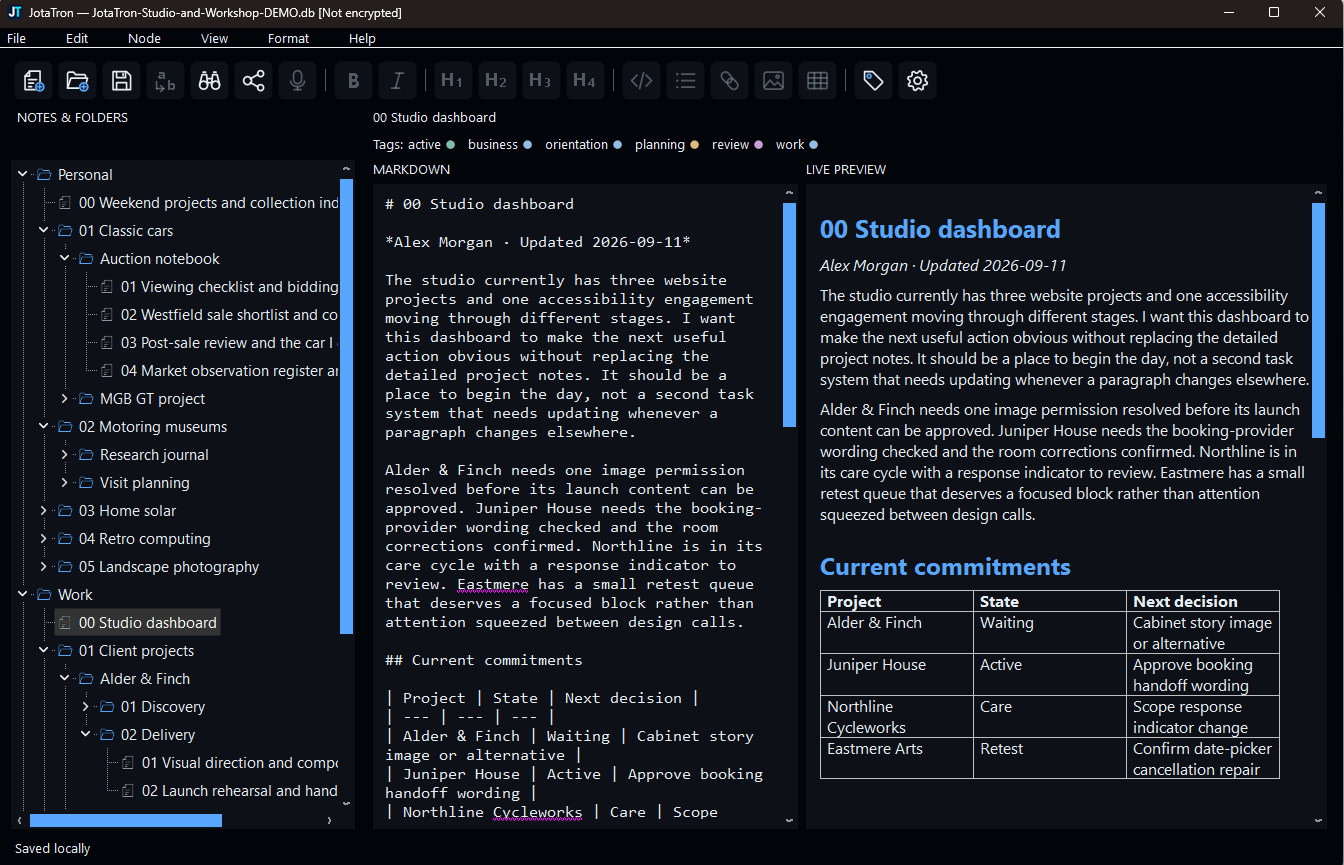
The folder tree, Markdown editor and live preview share one workspace. Formatting controls help with headings, lists, links, tables, images and code. Choose Split, Editor only or Preview only to suit the task.
Edits save after a brief pause, while Ctrl+S saves immediately. Preview-to-source navigation helps you return to the right passage in a longer note.
02 · Tag Map
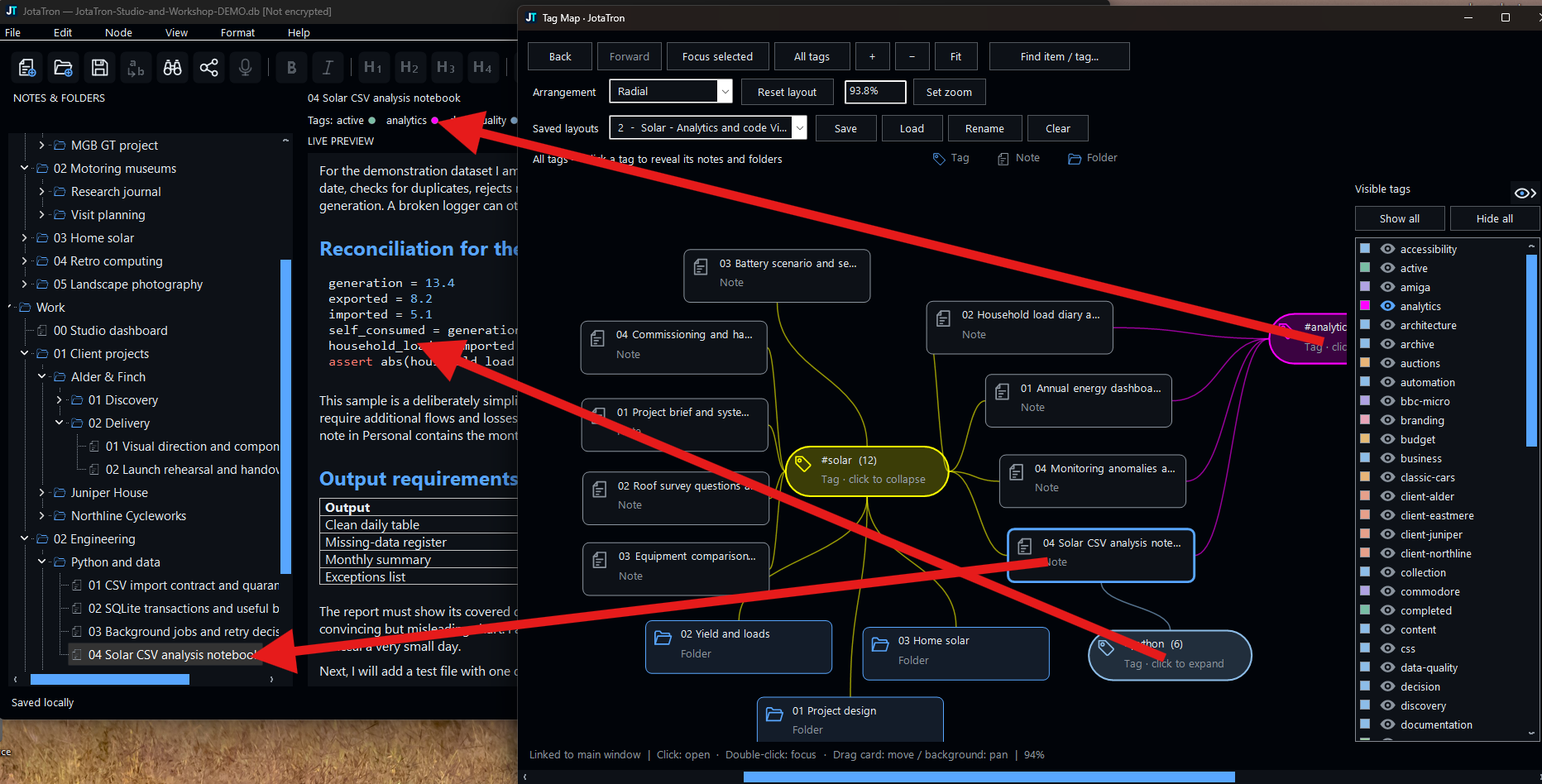
Tag Map displays tags, notes and folders as linked cards. Click an item to open it in the main window, double-click to focus its neighbourhood, then pan, zoom or hide tags to simplify the view.
Choose Horizontal, Vertical, Radial or Auto arrangement. Save up to eight named layouts; JotaTron also restores your last map view when you return.
03 · Search
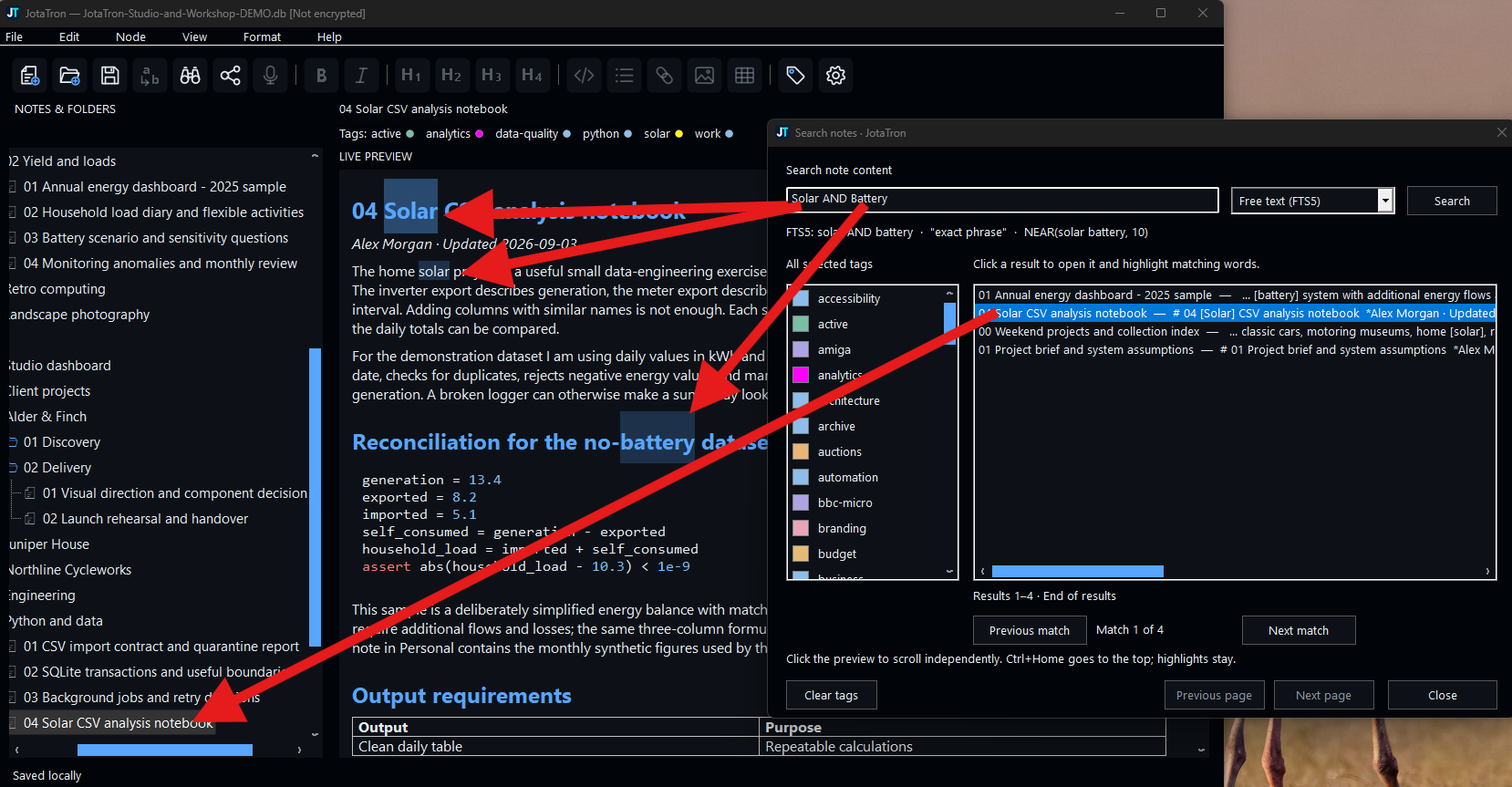
Search note content using ordinary terms, every-word matching, nearby-word matching or SQLite FTS expressions. Add one or more tags to narrow the results.
Open a result and JotaTron highlights matches in both source and preview. Previous and Next move through occurrences without losing the search window. Ctrl+H handles Find/Replace within the current note.
04 · Images and tables
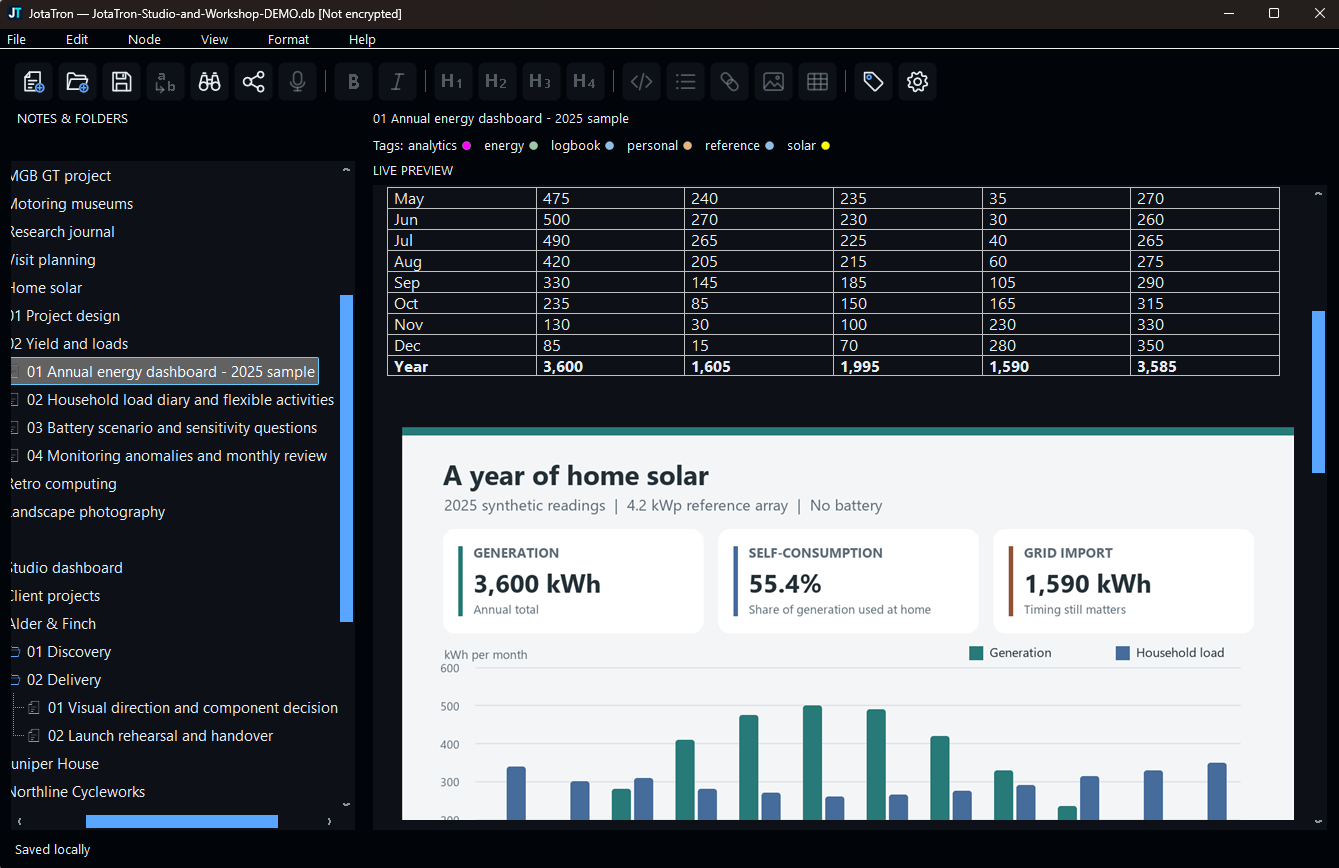
Import JPG or PNG images, or paste from the clipboard. JotaTron stores a normalised PNG inside the notebook and renders it from a local database link.
Set an occurrence to a percentage, fixed width or percentage of the preview, then align it left, centre or right. View the stored image at full size or save it to disk. Tables remain editable Markdown.
05 · Appearance
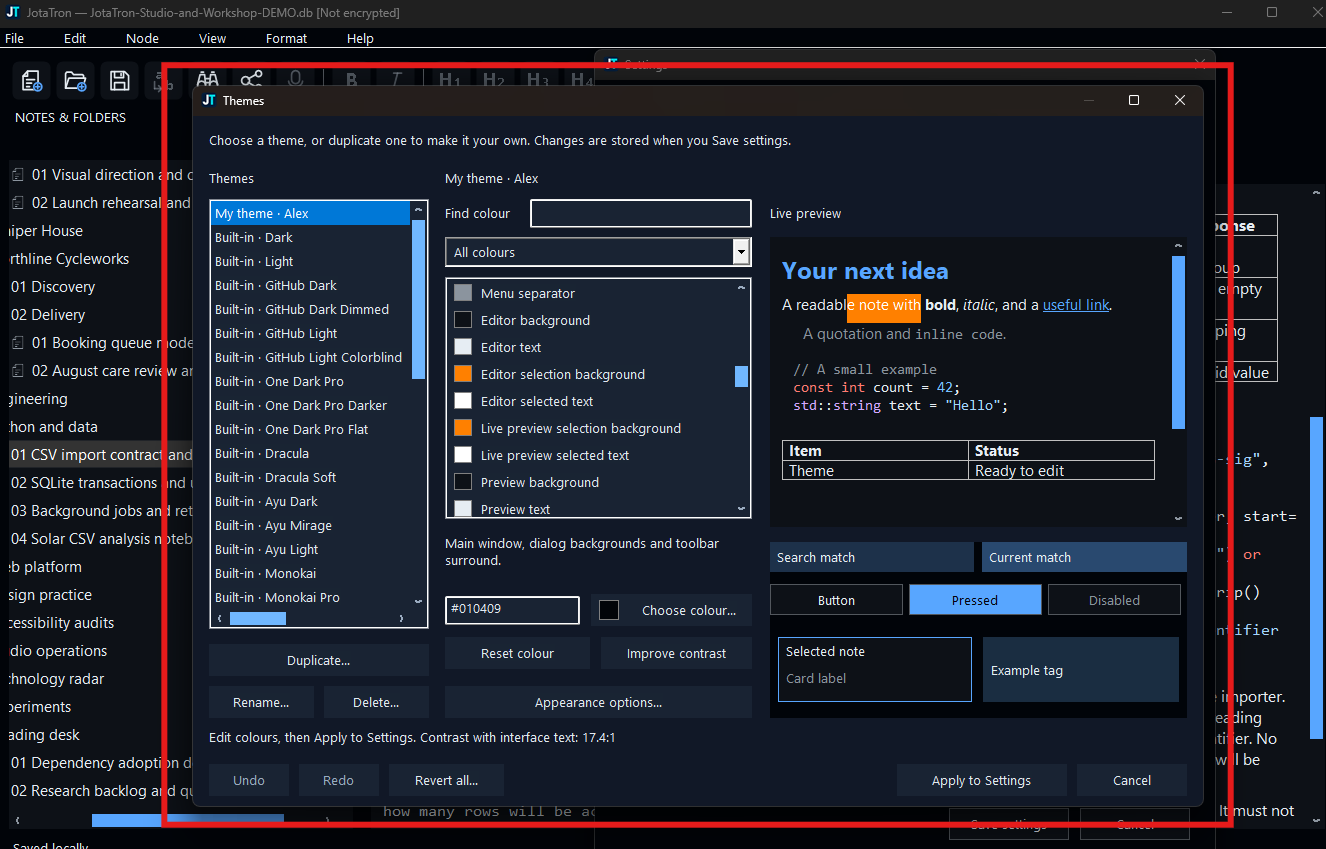
Choose from 38 built-in themes, adjust editor, tree and interface fonts, and scale the UI from 80% to 180%. Pane widths and window positions adapt to the way you work.
Duplicate a theme to make it your own. The theme manager groups editable colours, shows a live sample and supports Undo and Redo. Editor and preview selection colours can be controlled independently.
06 · Optional dictation
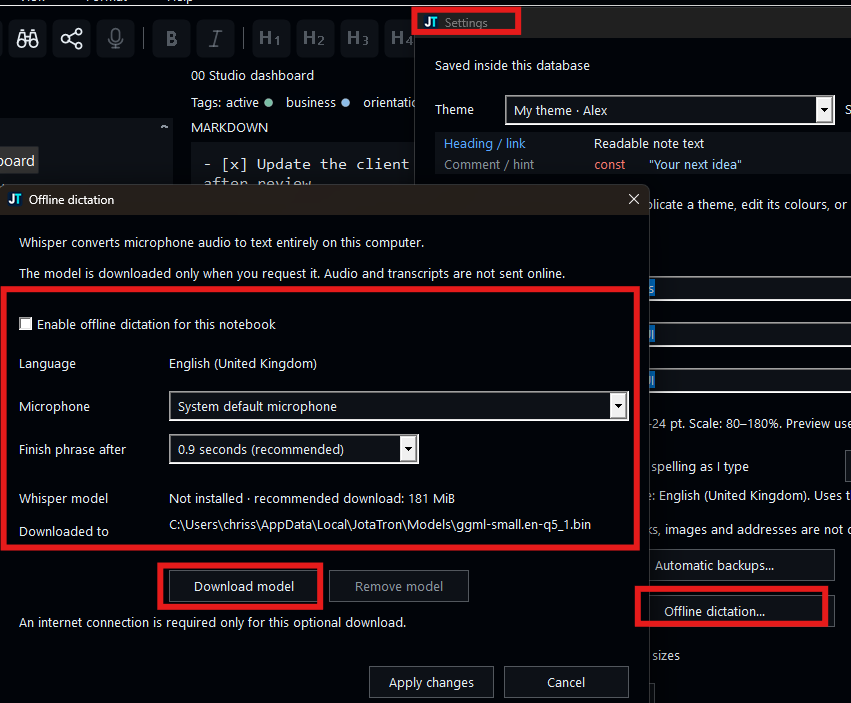
Download the verified Whisper small English model when you choose, enable dictation for a notebook, and select a Windows microphone and phrase pause. Finalised phrases enter the note as ordinary undoable text.
Audio and transcription stay on the computer. The initial model download needs internet access and about 181 MiB of storage. Dictation requires an AVX2-capable 64-bit processor and may need correction for noise, names or specialist terms.
07 · Backups
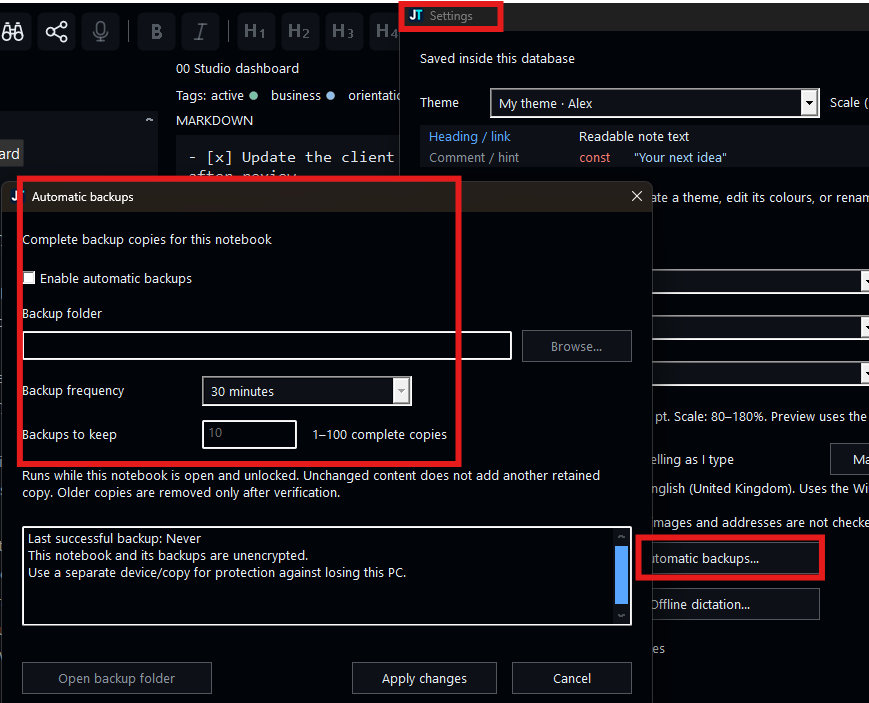
Make a complete manual database backup at any time. Automatic backups are optional and can retain 1–100 verified copies at intervals from 30 to 180 minutes while the notebook is open and unlocked.
An encrypted notebook produces encrypted ordinary backups. JotaTron can also make an explicitly warned unencrypted copy when you deliberately need readable SQLite data.
Keep another copy on suitable separate storage. A backup on the same computer cannot protect against losing that computer.
Storage and encryption
JotaTron gives you a clear choice when creating a notebook. The choice affects how the database file is stored, while exports and the clipboard remain outside that protection.
A local username and password control entry through JotaTron, but ordinary SQLite tools can read the file. Use this for non-sensitive material when database encryption is unnecessary.
SQLCipher protects stored notes, names, tags, images and indexes. There is no password recovery. Keep the password safe and remember that encrypted backups need it too.
Ready to explore?
Download JotaTron and the Studio & Workshop database, then follow the short opening guide.