
Create and move
Use New note, New folder and New top-level folder. Drag an item onto a folder to move it, or use Node > Move… for a chosen destination.
Start with confidence
Short, practical guidance for opening JotaTron, exploring the sample and keeping your notebook recoverable.
Quick start
Each JotaTron notebook is a local `.db` file with its own login and preferences.
Keep `JotaTron.exe` and its supplied documents together in a writable folder.
At Database selection, choose Create new… and select a new `.db` filename.
Enter a username and password. Tick Encrypt this database only if you need stored-file protection and can safeguard the password.
Use the page-plus button or Ctrl+N. Type Markdown in the editor and watch the preview update.
Create folders and add tags from the Node menu or right-click menu.
Use File > Backup database… and choose a new filename on suitable separate storage.
Explore before creating
The sample is fictional and unencrypted. Its public login lets you explore folders, tags, search, images and Tag Map without using personal data.
Get JotaTron and the separate sample `.db` from the Download page.
Select `JotaTron-Studio-and-Workshop-DEMO.db`.
It is case-sensitive and the password ends with `!`.
Then try Search notes and View > Open Tag Map.
Everyday workflow
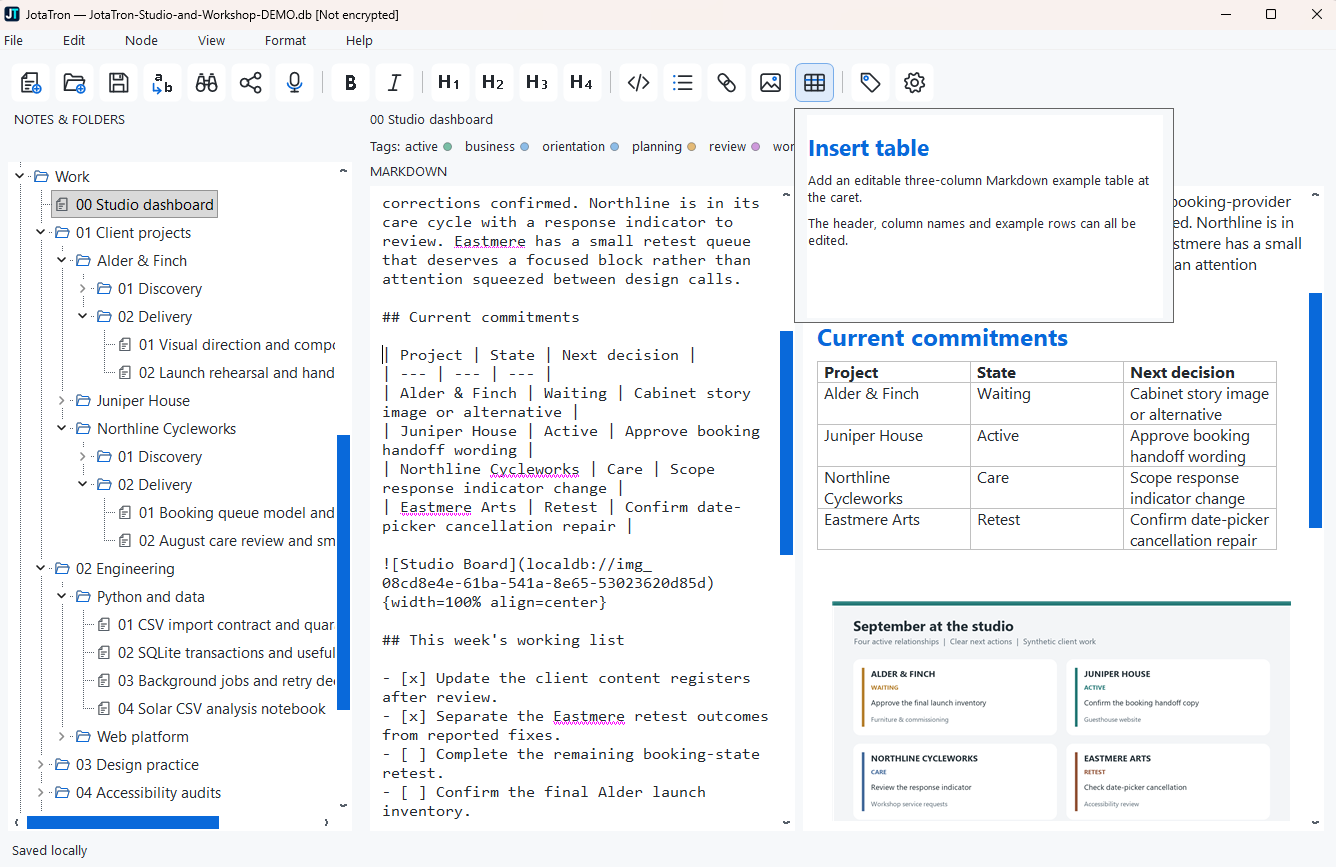
Select a folder before creating a note to put it inside that folder. Tags remain direct assignments and do not automatically flow from a folder to its children.
Use New note, New folder and New top-level folder. Drag an item onto a folder to move it, or use Node > Move… for a chosen destination.
Choose Node > Add / assign tags… for the selected note or folder. Edit tags separately to rename, recolour, merge or remove them.
Ctrl+F searches saved note content across the notebook. Select several tags to require every chosen tag as well as the text match.
Open Tag Map, click a card to navigate, double-click to focus and save useful arrangements in one of eight layout slots.
Protect your work
File > Backup database… creates a complete same-format copy. If the source is encrypted, this normal backup remains encrypted and needs the password that applied when it was made.
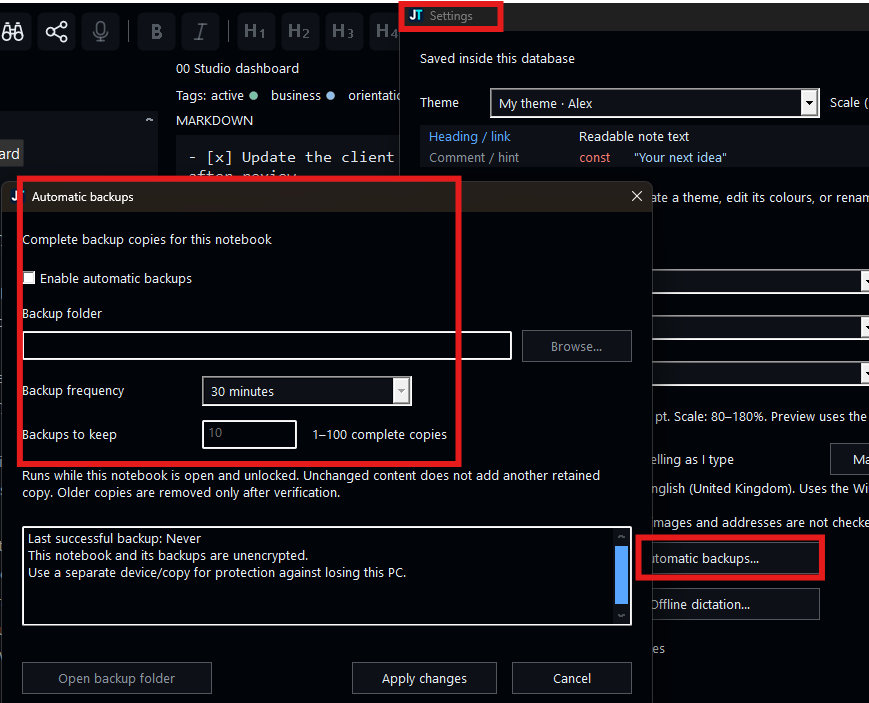
For scheduled copies, open Settings > Automatic backups…. Choose an existing writable folder, interval and retained-copy count, then select Apply changes and Save settings.
Automatic backups run only while that notebook is open and unlocked. They are complete copies, not per-note history.
Copy the chosen backup to a new working filename, open it with the credentials that applied at the time, and verify notes and images before replacing or deleting anything.
Encryption
Encryption is a property of the database. An ordinary local login and an encrypted notebook are different things.
SQLCipher protects notes, names, tags, images and indexes stored in the file. Clipboard contents and exported files sit outside that protection.
The notebook still has a JotaTron login, but database tools can read the file. Do not present the login as file encryption.
Keep an encryption password safe. Losing it means losing access to the encrypted database and its encrypted backups. A previously made unencrypted backup is readable data and should be protected accordingly.
Optional setup
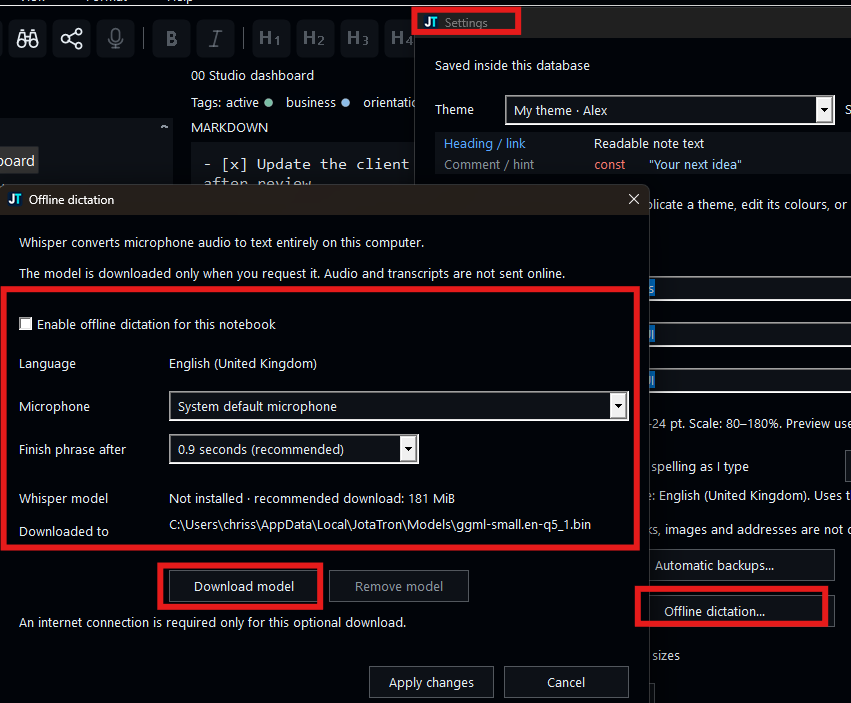
Confirm that the computer supports AVX2 and choose Download model.
Enable dictation for the notebook, then Apply changes and Save settings.
Toggle the microphone button. Finalised phrases appear at the current caret and can be undone normally.
After setup, microphone audio and recognition stay on the computer.
Useful answers
No. Each notebook has a local username and password, but there is no JotaTron cloud account.
Yes. Close the app before making a manual file copy, or use a complete database backup and open the copied `.db` with the corresponding credentials.
No. Autosave protects current edits. A backup is a separate complete copy of the notebook file.
You edit Markdown source, but toolbar actions help insert common formatting and the live preview shows the result.
No built-in cloud sync, collaboration or mobile client is included. The supported application is Windows x64.
There is no persisted per-note revision history or recycle bin. Editing Undo and complete backups serve different purposes.